
Collator node - Quick Start Guide
This page will guide you through the steps of purchasing a Collator node subscription and setting up your node. You cannot set-up nodes on Launchpad without an active subscription.
Subscription
Purchasing a subscription is the first step to setting up your Collator node(s) on the Energy Web X Parachain. Follow the steps below to subscribe.
Login to Launchpad with your account or create an account
Switch to the VaaS environment of Launchpad using the toggle on the top right of the Launchpad screen.
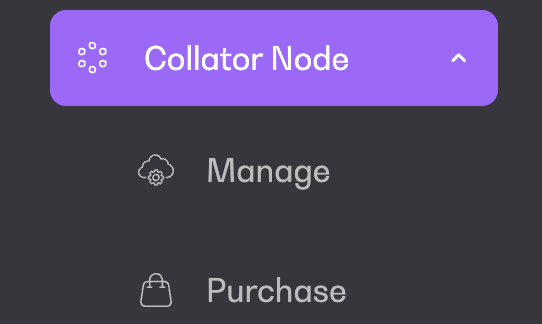
Under Node in the left hand bar menu, go to "Purchase"
Currently, you can only purchase a Collator node with EW managed cloud. Chose the number of nodes you would like to purchase.
Validate your choice by clicking on "Subscribe". This will take you to the payment screen.
Once your payment is validated, your subscription is active and you can start setting up your nodes.
Collator Node Creation and Deployment
Once your subscription is active, follow the steps below to set-up and manage your nodes.
Under Collator Node, go to "Manage". You will see your purchased bundle of nodes that are ready for deployment.
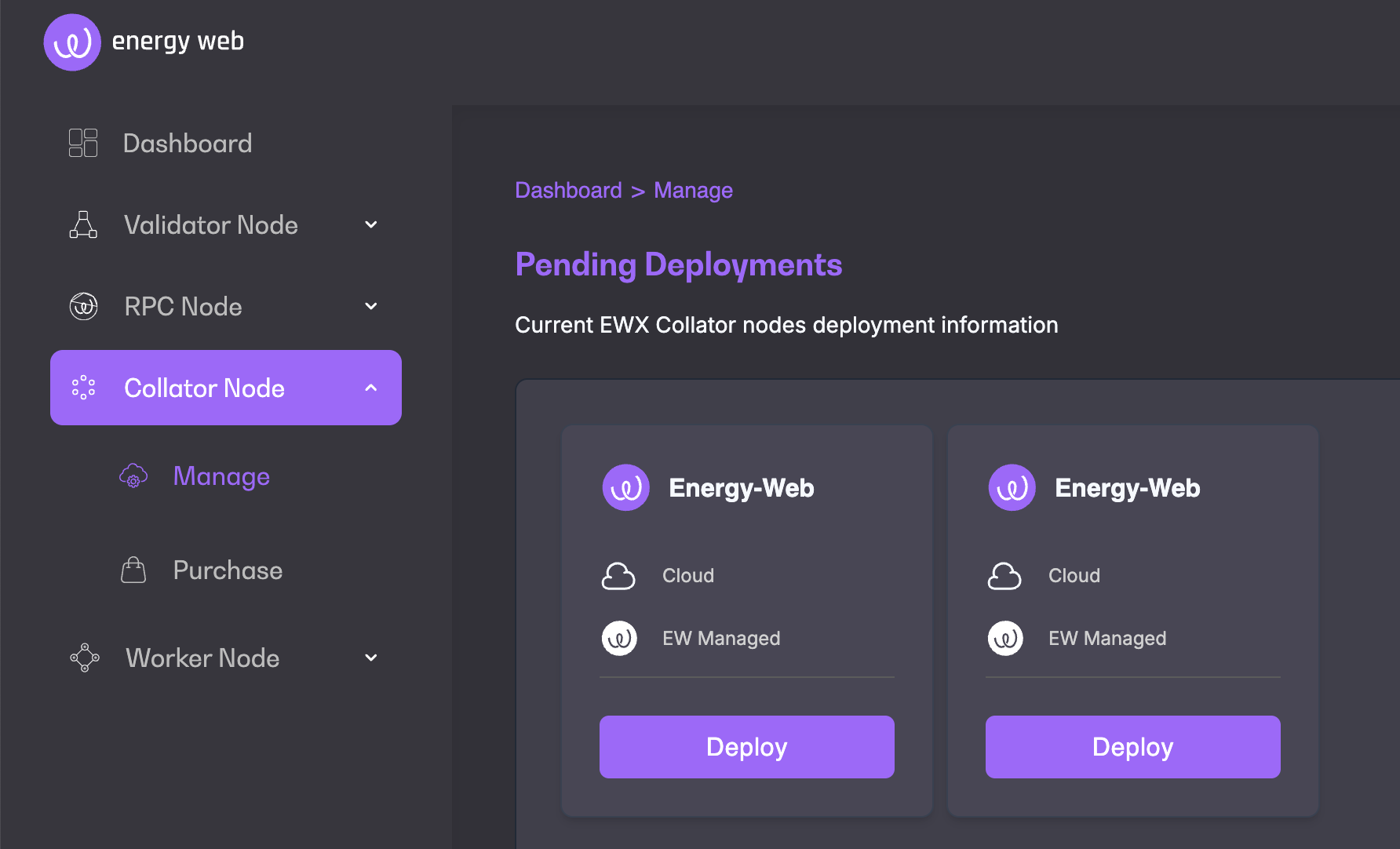
Click Deploy
Fill in the necessary configurations details and go to Deploy
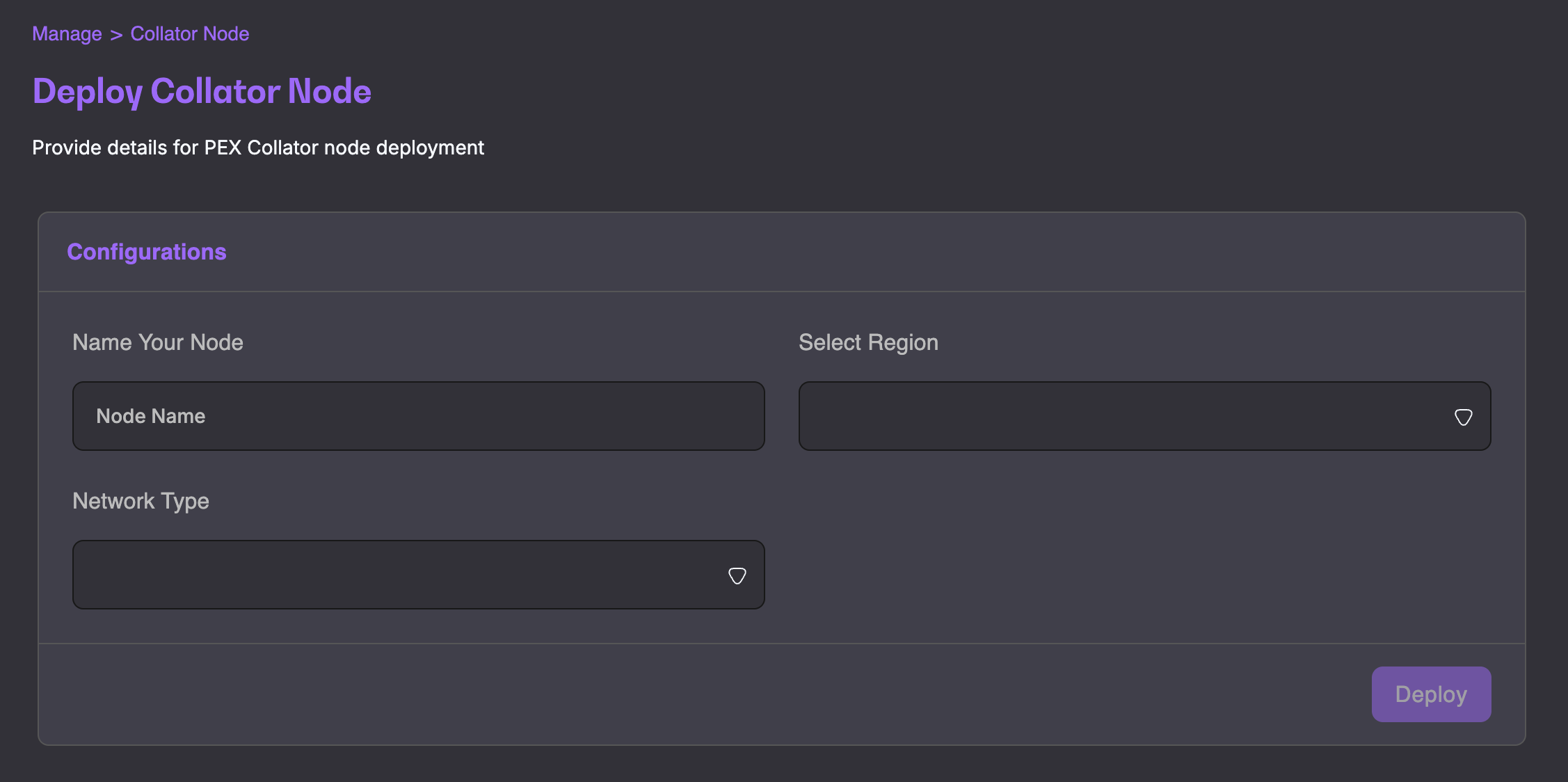
You will find your newly deployed node under Collator Nodes by clicking Manage.
Collator Node Management
You can access more information about your collator node details by clicking on View Details when in the manage view.

This section will include all general and specific details about your node and will allow you to kick off and track onboarding.

You can also view Node Analytics, such as Network Type, On-Chain Metrics, Logs and Alerts at any time by clicking Monitor Node.

Collator Node Statuses
A Collator node progresses through multiple independent statuses during setup and onboarding. These reflect infrastructure provisioning, chain synchronization, and onboarding state.
1. Node Status (Infrastructure Lifecycle)
The node status reflects the state of the underlying infrastructure managed by Launchpad.
Requested The node deployment has been initiated and infrastructure provisioning is in progress.
Provisioning (automatic) Launchpad provisions and configures the collator environment. No operator action is required.
Ready Infrastructure provisioning is complete. The node is operational and able to begin chain synchronization.
2. Sync Status (Chain Synchronization)
The sync status indicates whether the node has fully synchronized with the Energy Web X network.
N/A The node is not yet ready to begin syncing (infrastructure provisioning not complete).
Syncing The node is actively synchronizing with the EWX network. This process can take up to 48 hours or longer, depending on network conditions.
Synced The node is fully synchronized and ready for onboarding.
Failed The deployment or initialization process failed and the node is not operational. Manual intervention or redeployment is required.
Collator Node onboarding
Once the Collator node is deployed and synced, the onboarding process can be initiated by clicking Start Onboarding in the About section of the Collator node's Details page.
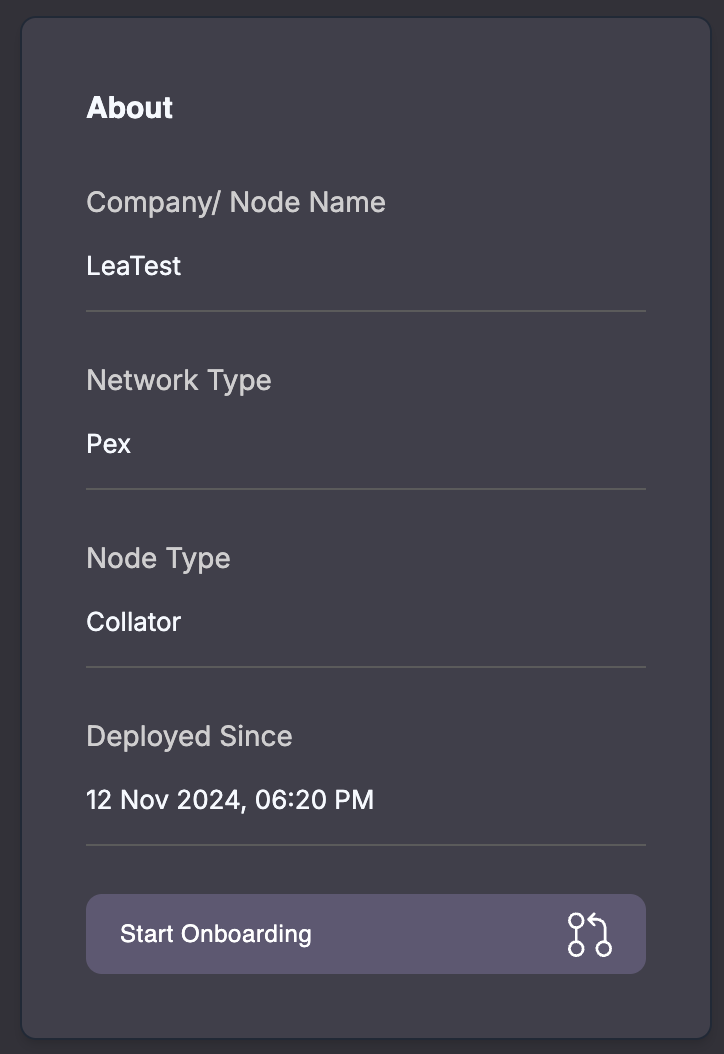
You can choose between Manual onboarding and Automatic onboarding.
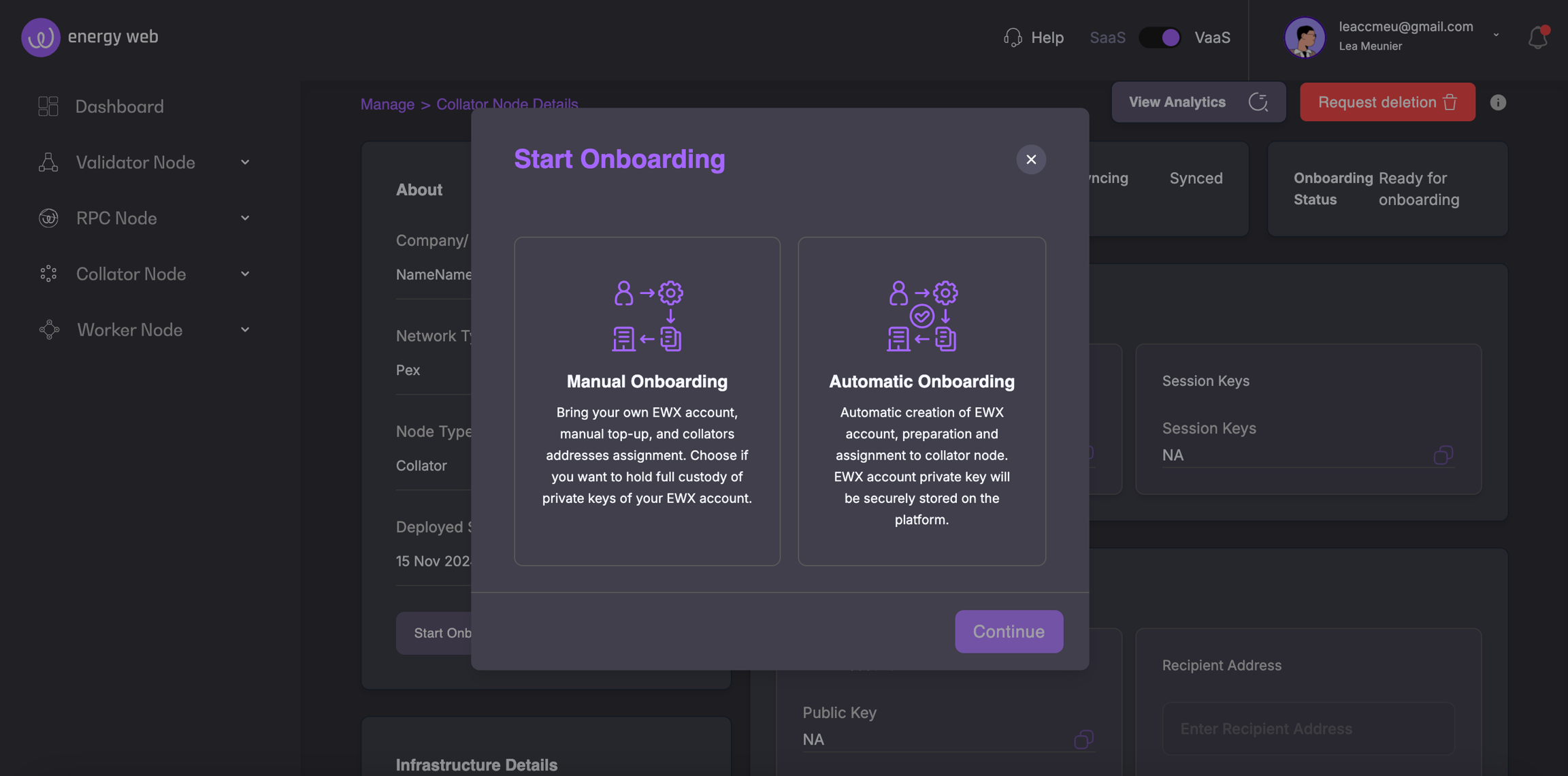
Manual onboarding
Manual onboarding is intended for operators who want full control and custody over their Collator accounts and keys.
With manual onboarding, the operator:
Brings their own EWX account
Manages token funding across chains
Executes and self-validates required on-chain actions
Launchpad guides the operator step by step and validates progress where possible.

Manual Onboarding Steps:
Import EWX Account
The operator imports an existing EWX account address, holding a minimum of 5010 EWT (see Business & Token Requirements for details).
Launchpad verifies on-chain state to ensure the account exists and is active.
EVM Account Funding (self-validated)
The operator must ensure the following EVM accounts are funded:
EWC EVM account: 1 EWT
Ethereum EVM account: 0.15 ETH
The operator confirms completion by manually validating and checking the corresponding confirmation boxes.
Session Key Assignment (
set_keys)The operator executes the
set_keystransaction using their EWX account.This step must be completed and self-validated by the operator.
Throughout manual onboarding, Launchpad provides guidance for each step and tracks completion status, but responsibility for execution and validation remains with the operator.
Upon completion, click Request Collator Authorization for the Collator node to be authorized and registered to enter the candidate pool. You will be informed via email when your Collator is ready and the onboarding status within the Details page will change to Ready.
Automatic onboarding
Note: Automatic onboarding is temporarily suspended.
With the Automatic onboarding, all the necessary steps will be automatically done by the Launchpad platform, allowing you to get started immediately with your Collator node.
With automatic onboarding:
Launchpad performs all required steps automatically
Account setup, key assignment, and validation are handled by the platform
No manual on-chain actions are required
Once all steps are complete, the operator can click Request for Collator Authorization.
The operator will be notified by email when the Collator is ready, and the onboarding status in the Details view will update to Ready.
Last updated