"My Account" is where you can update your and your organizations contact and billing details & view your account details.
You access and update "My Account":
In SaaS: by clicking "Settings" at the bottom left of the page OR by clicking on your account email and icon on the top right of the page.
In VaaS: your account details are only available via the account email and icon at the top right of the page.
"My Profile" is the first item under "My Account". From "My Profile", you can view and update:
You personal data: first and last names, email address, phone number, website URL
Your addresses: billing and shipping address ⚠ Please note that the Shipping address will determine tax exceptions
Your cards: payment cards used for your subscriptions. You can add and remove credits cards from here.
"My Cloud" is where you can set and update your Cloud data. The following Cloud solutions are compatible with Launchpad:
AWS
Cloud Ocean
Head to "Subscription" for an overview of all your and your organization's current subscriptions. You can directly update subscriptions from here and verify your corresponding payment data.
You "Activity Logs" contain all login and network activities that happened on your and your organization's account.
Please note that Organizations are not fully set-up in Launchpad yet.
The concept of Organizations within Launchpad allows multiple users to share common solutions and products. It means that users will be added under the same Organization umbrella and have a variety of access based on roles. Organizations will allow a common view for users that belong to it.
You can choose to use Launchpad as an individual, but if you need to work as an organization that will soon be directly accessible via your Account settings.
Until you can readily create an Organization in Launchpad, we invite to create a support ticket with this request if you wish to add additional users.
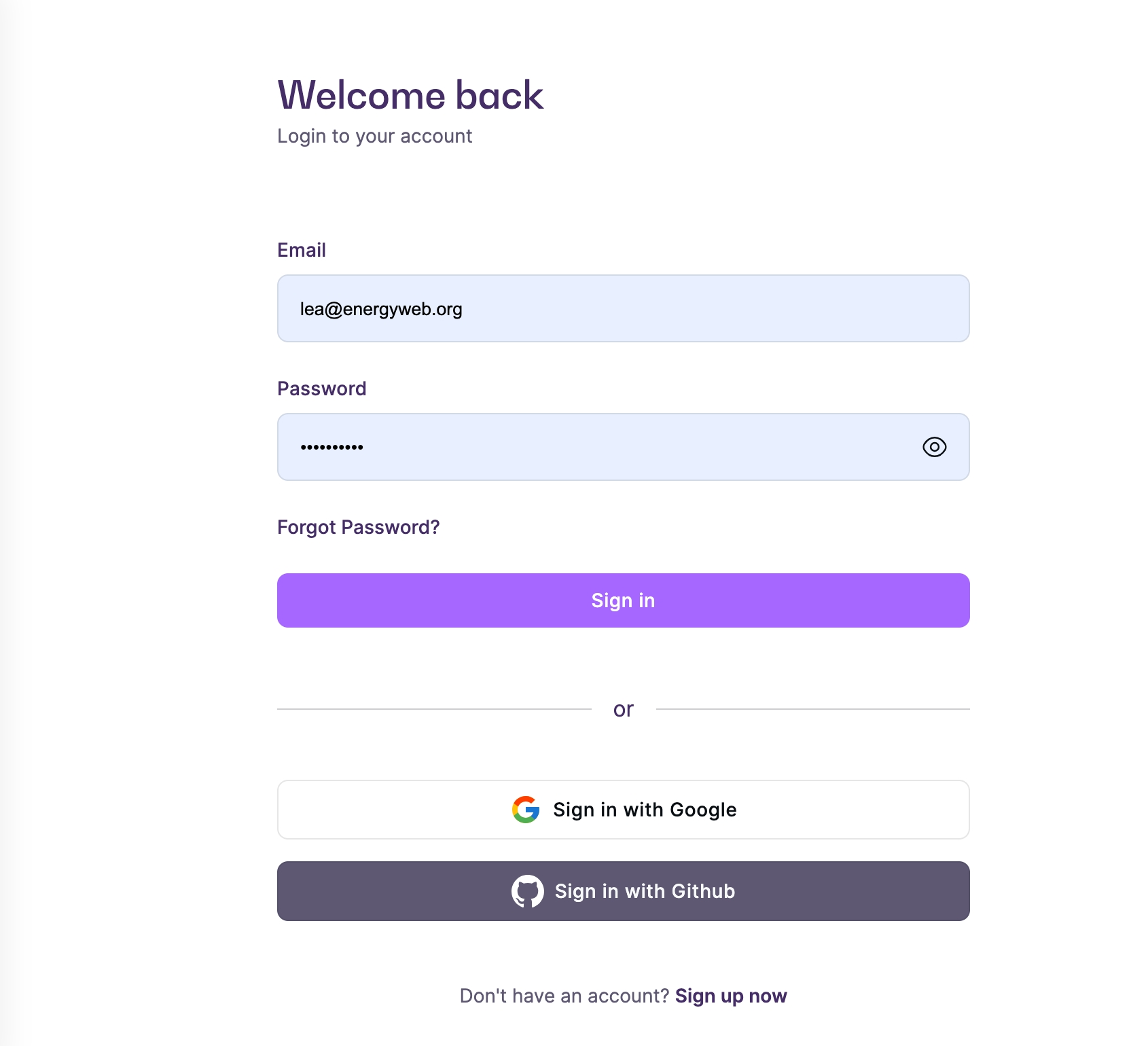
You need to have an account to use Launchpad. If you are part of a Member organization, you can sign in with the login and password provided by the Energy Web team.Otherwise, you will need to create a new account.
There are multiple ways to create an account from the Launchpad start screen at https://launchpad.energyweb.org/login:
Create an account with email and password by clicking "Sign up now" at the bottom of the start screen
Create an account using social logins. You can do that using Google, Apple or Github. Once the account is created with social login, you can always add a password in the future by using the forgot password option.
Once your account is created and you have logged in, you will be asked to add your organization name, this will allow you to add additional users to your account. If you are using Launchpad as an individual user, you can enter any name as Organization name. This will have no impact on your account or its features.
This documentation is here to help you get started with Launchpad and make the best of its various products.
Worker Node Network Quick Start Guide
Validator node Quick Start Guide