# Bootstrapping Server-based Worker Node Accounts

Before you start using your Worker Node and be able to control blockchain set-up fully using Marketplace app, there is a set-of one-time actions that needs to be done as a prerequisite.

## Types of EWX Accounts

1. [Operator](/core-concepts/worker-node-operator.md) Account - an EWX account which serves as the main account of the operator to be used in EWT management (lifting/lowering), subscriptions, rewards, etc
2. Worker Node Account - an EWX account with the sole purpose of casting votes on behalf of the operator (interacting with blockchain).

## Prerequisites

1. Public Address of the Worker Node Account - the worker node account must already be created using any of [wallet which supports EWX](https://wiki.polkadot.network/docs/wallets-and-extensions).\* \
   \
   \****Disclaimer*** -> *If you use Launchpad Managed Worker Node offer, there is an option to automatically generate Worker Account along with Worker set-up.*<br>
2. Operator Account with enough EWT balance - create an account from [any wallet which supports EWX](https://wiki.polkadot.network/docs/wallets-and-extensions) and make sure to [lift](/core-concepts/energy-web-tokens/token-lifting.md) enough EWT for signing-up as operator, linking worker account to operator, [opting-in to solution groups](/core-concepts/subscription.md), etc

## Step by step guide to setup your worker node

Please be informed that below actions can be conducted using both:

1. Marketplace Desktop App - download the latest version from <https://www.energywebx.com/>
2. Marketplace Web App (**Recommended**) - [https://marketplace.energywebx.com/](https://marketplace.energywebx.com/#/discover)

<figure><img src="/files/pSuxPobkXlakMQxlt65V" alt=""><figcaption><p><strong>Figure 1</strong> Setting-up a worker node account</p></figcaption></figure>

### Sign-up as operator

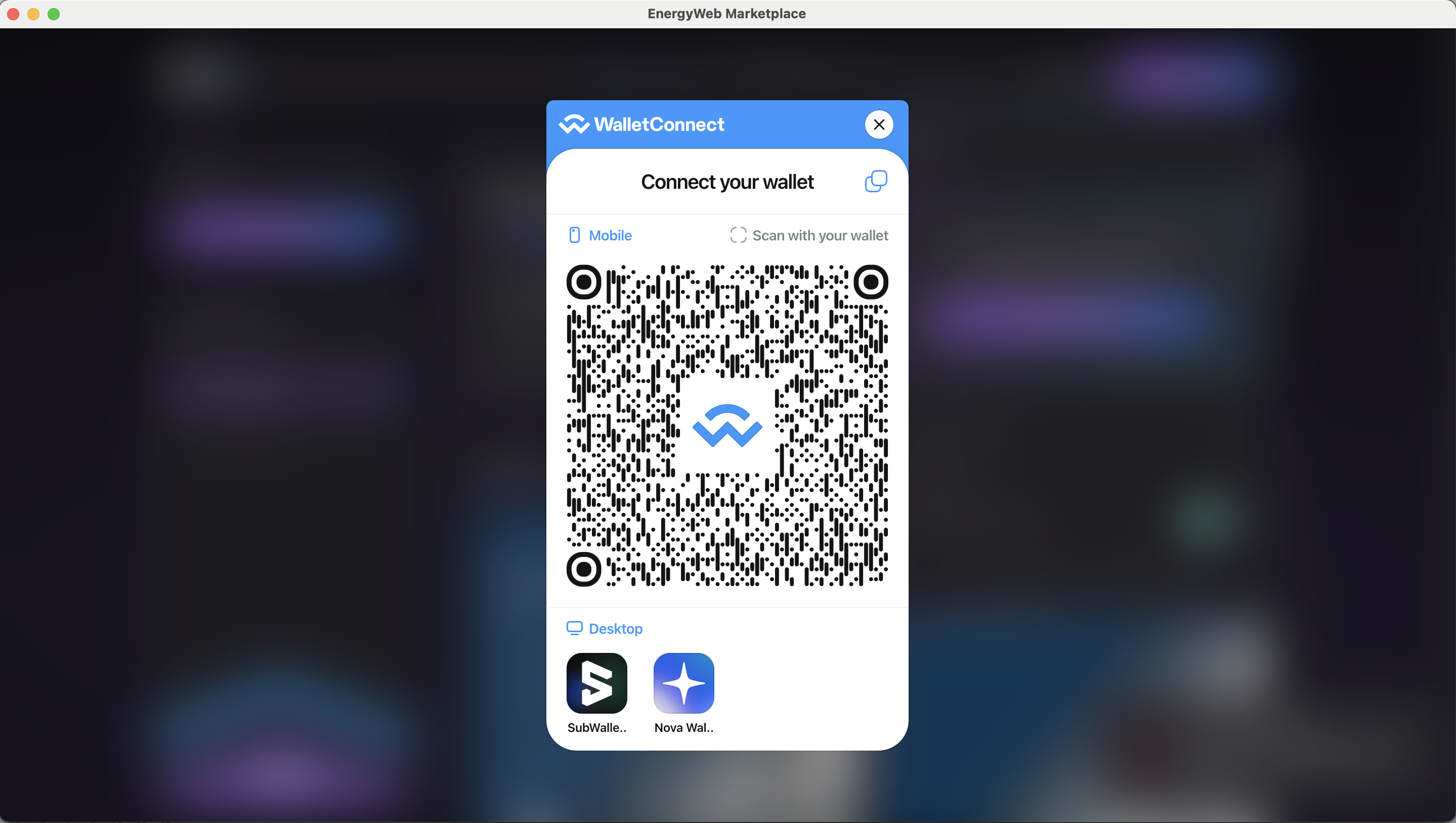
To sign-up as an operator, you must prepare your "operator" EWX account. This account is just a normal account created on EWX network via any supported Polkadot wallet. For now, we suggest to use [Sub Wallet](https://www.subwallet.app/) or Nova Wallet. Make sure to always keep your seedphrase copied and secured elsewhere. In addition, please ensure that your operator account has sufficient EWT balance to proceed with any on-chain transaction.

Please follow below steps to sign-up as an operator.

1. Connect your operator account\
   &#x20;

   <figure><img src="/files/iulNt7oZarq5IjUqWEIV" alt="" width="375"><figcaption></figcaption></figure>
2. Approve the connection request in your wallet<br>

   <figure><img src="/files/z1KXFoPksae19Hjp72pD" alt="" width="188"><figcaption></figcaption></figure>
3. Once connected, you will be redirected to the Discover page and you will see your "operator" public address in the upper right corner of the screen as highlighted below<br>

   <figure><img src="/files/FT0owwBrcPoX6eGRetzX" alt="" width="375"><figcaption></figcaption></figure>
4. Browse through any solution group and click on it. You will be redirected to its details page. Then, click on the "Opt-in" button<br>

   <figure><img src="/files/DrIF3BpgejtuYmwU697g" alt="" width="375"><figcaption></figcaption></figure>
5. The sign-up operator dialog gets displayed. Input your details accordingly and approve the transaction in your wallet.<br>

   <figure><img src="/files/gWJB7XD82sh2pLpr9vXq" alt="" width="375"><figcaption></figcaption></figure>

### Subscribe to solution group

After the signing-up as an operator, you will be prompted to stake tokens to your selected solution group from the Discover page. Stake your desired amount and approve the transaction in your wallet.

<figure><img src="/files/vY2Ms5d4lw1lM5yo8q5d" alt="" width="375"><figcaption><p>Stake EWT to subscribe to solution group</p></figcaption></figure>

<figure><img src="/files/XdRKKVHByytPsnMJE2qM" alt="" width="375"><figcaption><p>Confirm stake amount to proceed</p></figcaption></figure>

<figure><img src="/files/gkT184P9IgjIh2yYN2qW" alt="" width="375"><figcaption><p>Approve the transaction in your wallet</p></figcaption></figure>

### Set worker node account

After subscribing to the solution group, you will be prompted whether to participate in a worker node network.&#x20;

<figure><img src="/files/f504hErUhynBRdYM4K0P" alt="" width="375"><figcaption><p>Click "Continue" button to proceed. </p></figcaption></figure>

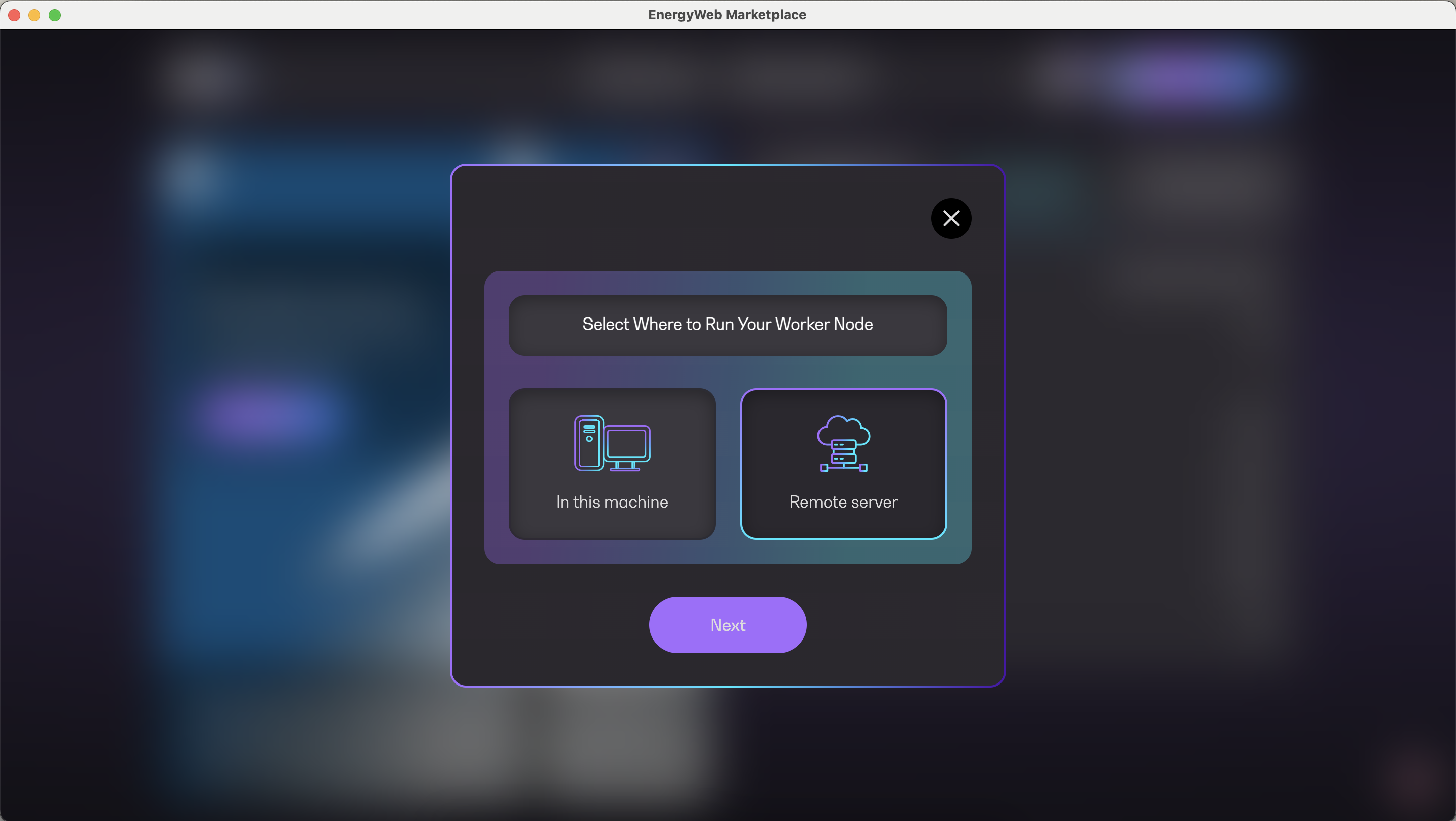
<figure><img src="/files/UHX8DE5X0pRR3ZN9NYVg" alt="" width="375"><figcaption><p>Select "Remote server" and click "Next"</p></figcaption></figure>

<figure><img src="/files/I0g7bSO7Kh3ig7DLLdMS" alt="" width="375"><figcaption><p>Input your worker node public address and proceed</p></figcaption></figure>

### Link worker to operator

After setting your worker node public address above, you will be prompted to link your worker node account to your operator account.

<figure><img src="/files/nxoDC2mWa0VQ522gE3oQ" alt="" width="375"><figcaption><p>Simply click "Continue" to proceed</p></figcaption></figure>

<figure><img src="/files/KjCSfsuxgF67Hc3QMB7N" alt="" width="375"><figcaption><p>Then, approve the transaction in your wallet</p></figcaption></figure>

<figure><img src="/files/akztC9FYrmxA2JZ0NKr2" alt="" width="375"><figcaption><p>A success message is displayed and you are done</p></figcaption></figure>

Once done, your basic set-up is ready and you can continue with further Marketplace App Operator console exploration OR get back to your Server-based Worker Node set-up if it wasn't finished already.


---

# Agent Instructions: Querying This Documentation

If you need additional information that is not directly available in this page, you can query the documentation dynamically by asking a question.

Perform an HTTP GET request on the current page URL with the `ask` query parameter:

```
GET https://docs.energyweb.org/ewx-ecosystem/worker-nodes/server-based-worker-nodes/bootstrapping-server-based-worker-node-accounts.md?ask=<question>
```

The question should be specific, self-contained, and written in natural language.
The response will contain a direct answer to the question and relevant excerpts and sources from the documentation.

Use this mechanism when the answer is not explicitly present in the current page, you need clarification or additional context, or you want to retrieve related documentation sections.