> For the complete documentation index, see [llms.txt](https://docs.energyweb.org/llms.txt). Markdown versions of documentation pages are available by appending `.md` to page URLs; this page is available as [Markdown](https://docs.energyweb.org/ewx-ecosystem/the-marketplace-app/how-to-use-ledger-on-marketplace-app.md).
# How to use Ledger on Marketplace App
## Prerequisites
Before using Ledger on the Marketplace App, the Polkadot app needs to be installed in the hardware wallet device. To do so, open the Ledger Live application in your computer and go to "My Ledger" section of the sidebar. Make sure your Ledger device is connected to the computer and unlocked when doing this.
In the "App Catalog" section, search for the Polkadot app and install it.
Confirm that the Polkadot app is correctly installed.
Now the device is ready to interact with the Polkadot chain, including the EWX chain.
## :warning: Things to Keep in Mind before using Ledger in the Marketplace App
Ledger Live app does not display EWX account and its balance as it is not yet supported. EWF is already including this in the roadmap.
The Marketplace App directly communicates with your Ledger device without the need to use Ledger Live as long as Polkadot is installed.
## Connect Operator Account using Ledger Device
The first step to use Ledger with the EWX Marketplace application is to connect your hardware wallet. In this case, the process is very similar to connecting any other browser or mobile-based wallet. The user needs to click on the “Connect” button that appears both in the top-right corner of the screen.
A dialog will pop up, and the user can choose its preferred method to connect the wallet - in this case, choose Ledger.
The user will be prompted to continue the connection process in the hardware device.
By default, the Ledger device will look like this when unlocked:
After starting the connection process, the user needs to open the Polkadot application on the Ledger device.
After opening the Polkadot app (pressing both buttons at the same time), this will appear on the device:
That means there is an ongoing operation that needs to approve. To do that, press the right button until the “Approve” screen is displayed.
After approval, below shows the confirmation that the user is connected to the Ledger account successfully.
After successful connection, the EWX Account will be displayed on the upper right corner of the screen.
{% hint style="success" %}
A new EWX address will be generated for first time users. The connected address is derived from the account which seed phrase is automatically generated and stored in the Ledger device.
{% endhint %}
{% hint style="warning" %}
One Ledger device can only represent a single EWX operator account.
{% endhint %}
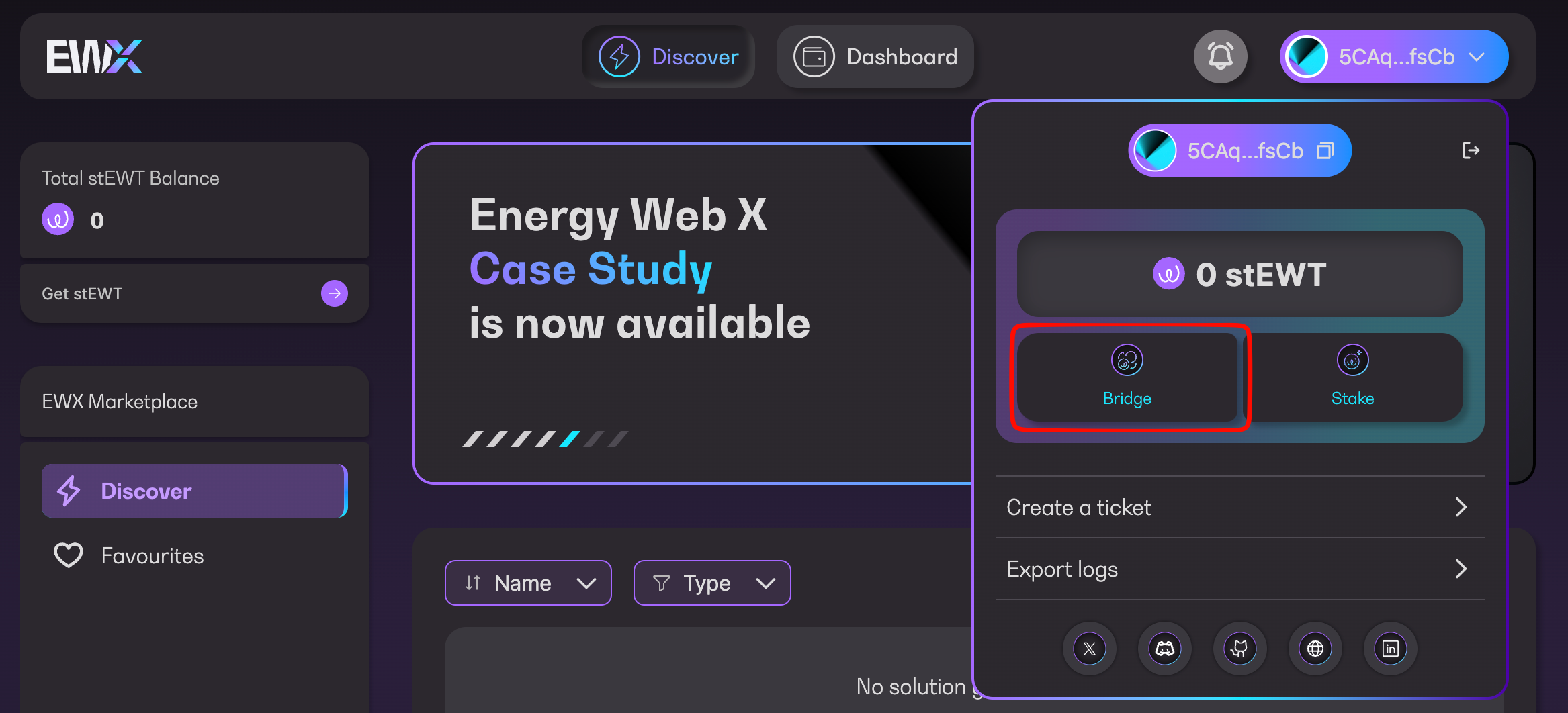
## Funding the EWX Account
To fund an EWX Account, the user can lift tokens from their existing EWC account or by creating a new one. EWC accounts can easily be created and funded using exchanges offering EWT such as [Kraken](https://www.kraken.com) or [KuCoin](https://www.kucoin.com).
## Executing a transaction
The process is very similar to the browser-based wallet, and applies to all the different transactions available on the app: lowering, sign up as operator, subscribe, link worker account, unsubscribe, top-up stake and claim rewards. After initiating a transaction, for example - lowering, the user will see a ‘Pending confirmation’ screen. The user needs to confirm the operation using the same method used to connect to the wallet.
When this screen appears, open the Polkadot account on the Ledger device, just like before.
After opening the app, review and approve the operation.
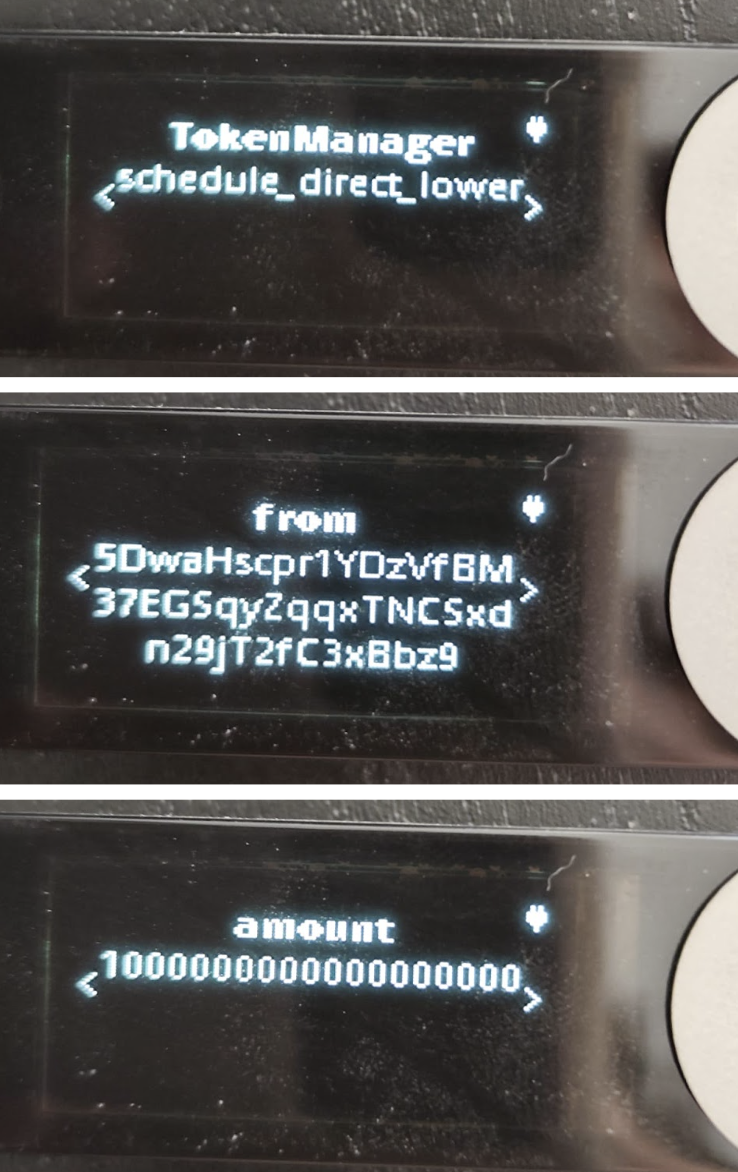
The details of the transaction are displayed on the device just like on the next sample screens.
Proceed to approve the operation.
The progress screen on the app immediately changes, displaying the “Executing transaction” title. At this point, the transaction has been sent and is being processed on the blockchain.
If the transaction finished successfully, the success screen and the corresponding tx hash are displayed. This concludes the entire transaction process.
---
# Agent Instructions
This documentation is published with GitBook. GitBook is the documentation platform designed so that both humans and AI agents can read, navigate, and reason over technical content effectively. Learn more at gitbook.com.
## Querying This Documentation
If you need additional information that is not directly available in this page, you can query the documentation dynamically by asking a question.
Perform an HTTP GET request on the current page URL with the `ask` query parameter, and the optional `goal` query parameter:
```
GET https://docs.energyweb.org/ewx-ecosystem/the-marketplace-app/how-to-use-ledger-on-marketplace-app.md?ask=&goal=
```
`ask` is the immediate question: it should be specific, self-contained, and written in natural language.
`goal` is optional and describes the broader end goal you are ultimately trying to accomplish on behalf of the user. GitBook uses it to tailor the answer towards what is most useful for that goal.
The response will contain a direct answer to the question and relevant excerpts and sources from the documentation.
Use this mechanism when the answer is not explicitly present in the current page, you need clarification or additional context, or you want to retrieve related documentation sections.